How to create a WhatsApp template (appointment invitation)?
This article explains how to create an appointment invitation WhatsApp template. This invitation message will request the candidate to schedule a meeting with one of the team members, such as a recruiter.
| IN THIS ARTICLE |
|---|
| Create new template |
| Basic information |
| Edit template |
| Configure variables |
| Save and submit |
Create new template
-
Go to the WhatsApp configuration screen in the Jobrock admin module via Admin > Branding > WhatsApp.
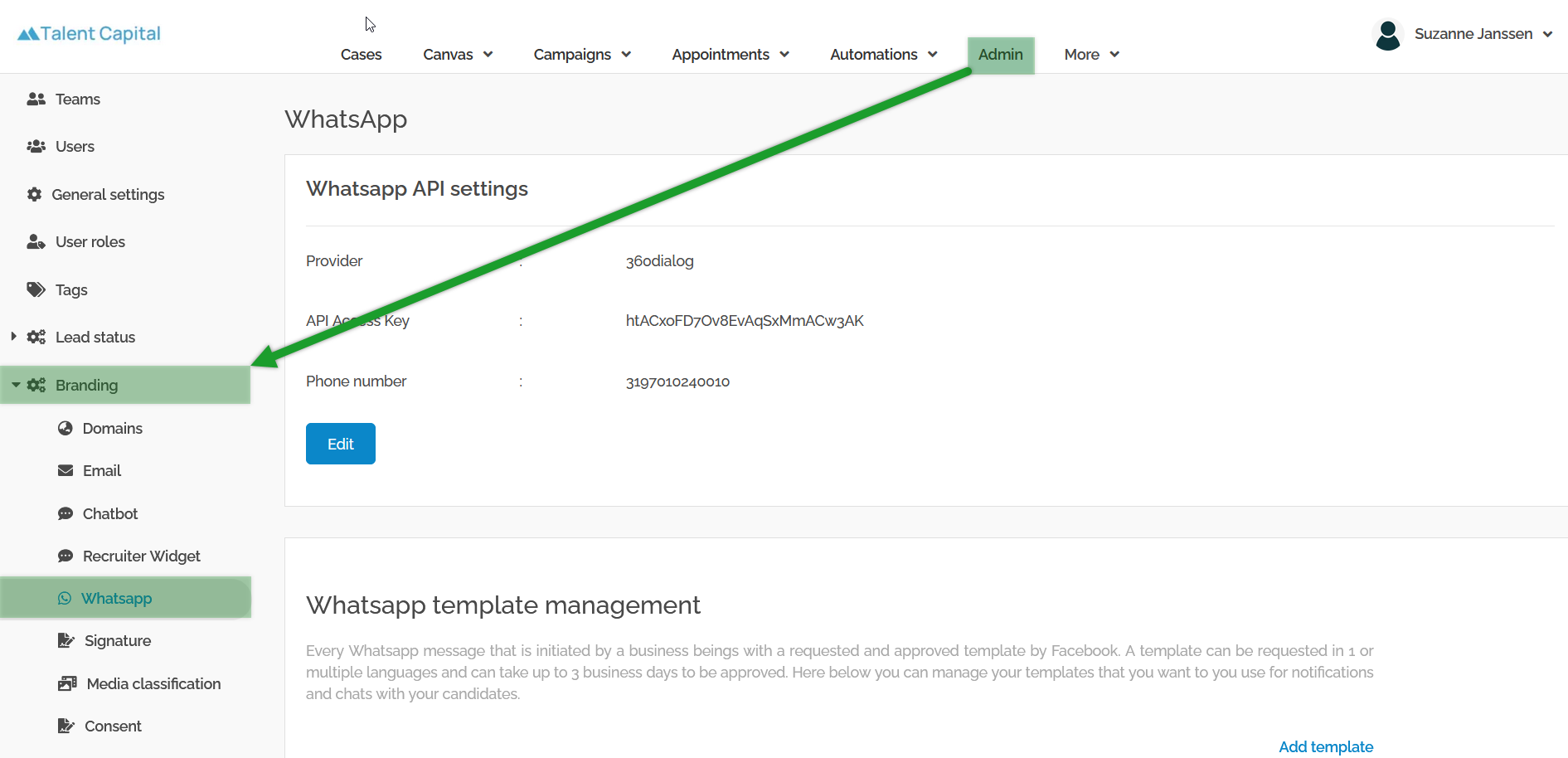
Go to WhatsApp in the admin section
-
Under WhatsApp template management, navigate to the Appointments tab.
-
Click on the Lead tab.
- Click the Create new template button.
READ MORE: Click here for more information about different template categories and the difference between ''lead'' and ''contact'' templates
Basic information
-
Fill in the Name of the template, this is the name for submitting the template and you may not use upper case letters or spaces between words.
Example: generic_appointment_invite
-
Fill in the Display Name of the template, this name will be shown when you are managing or selecting templates.
Example: Generic Appointment Invite
NOTE: The names or display names of the template will not be visible to any recipients.
- Choose the Marketing category of the template.
RELATED ARTICLE: Read more about the different categories of templates.
-
Choose the Display Order of the template.
- Click Next to proceed to the next screen.

Edit template
-
Choose the Language of the template.
- Choose the template structure Media & Interactive.
RELATED ARTICLE: Read more about different structures of templates.
-
Select Header, Body and Buttons as your template building blocks.
- Choose Text as your header type

TIP: Consider using a video header instead of a text header to add a personal touch and establish a meaningful connection with candidates.
-
Fill in the Header for the template.
Example: I would like to speak to you!
RELATED ARTICLE: Looking for examples in different languages? Read more here.
-
Fill in the Body Text for the template.
Example:
Hi {{1}}, thank you for your application. I'm {{2}} and I'd like to introduce myself.
At Talent Capital, we value personal contact, so I would like to have a phone call with you to discuss your application.
Click the button below to schedule an appointment with me directly.
Regards, {{3}}
RELATED ARTICLE: Use variables such as {{1}}, {{2}}, etc. to personalize templates with names, recruiter names, vacancy or appointment details, etc. Read more about variables here.
- Select Call to Action as your button type and click Add Button.

-
Fill in the Button Text.
Example: Plan your call!
- Select Appointment and select Schedule Link.

RELATED ARTICLE: Read more here about buttons and call to actions in templates.
- Click Next to proceed
Configure variables
- Click Add Variable on the positions 1, 2 and 3 and select the relevant variable for that position in the text
Example:
{{1}} - Contact.FirstName
{{2}} - Vacancy.ContactFirstName
{{3}} - Vacancy.ContactFirstName

- Provide Examples for all the variables.

Save and submit
- Click Save to submit your template.
NOTE: It can take several hours up to days before your templates is accepted.