How to add a Jobrock user?
This guide will walk you through the process of adding a new user to Jobrock, including the creation of a Salesforce user if necessary and the activation of a Jobrock account through Salesforce.
Adding a new user to Jobrock involves understanding the integration between Jobrock and Salesforce, particularly in terms of user authentication. Jobrock utilizes Salesforce's Single Sign-On (SSO) method, meaning it relies on Salesforce for user verification and login credentials.
Understanding Salesforce SSO with Jobrock
Jobrock leverages Salesforce's SSO for a streamlined login process. This means that user credentials are managed through Salesforce, and these credentials are used to access Jobrock. Therefore, the primary steps for adding a user to Jobrock involve managing Salesforce accounts.
Create a new user in Salesforce (if needed)
If the user you wish to add to Jobrock does not have an existing Salesforce account, follow these steps:
Step 1: Contact the Salesforce admin
A Salesforce admin handles the creation of new users in Salesforce. Reach out to your admin to initiate the process.
Step 2: Create the user account
The Salesforce admin will create a new user account in Salesforce. This involves filling out the user’s details such as name, email, role, and assigning the appropriate permissions.
Step 3: Provide user access information
Once the account is created, the user will receive their login credentials, typically via email.
Assign Permission set & activate Jobrock
First, the Salesforce admin needs to assign the appropriate Jobrock permission set to a user. Afterward, the user can activate Jobrock through the widget.
Follow the steps below.
Step 1: Assign relevant Permission set
Assign the relevant permission set to a user by following the steps outlined here.
Step 2: Activating Jobrock account for existing Salesforce user(s)
Users can activate their Jobrock account as follows:
- Login to Salesforce:
The user must log into their Salesforce account.
- Navigate to the Jobrock widget:
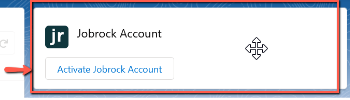
Inside Salesforce, there is a Jobrock widget. The user needs to locate this widget, which is usually found on the user profile page but this differs per organization. The Salesforce admin can help locating the Jobrock profile widget.
- Activate Jobrock:
The user will find an option to "Activate Jobrock Account" within this widget. A validation process will ensure the user’s Salesforce account is linked with Jobrock.
Automatic user sync to Jobrock based on Job Ownership
In Jobrock, there is an automatic user synchronization mechanism that is triggered by job ownership in Salesforce:
- User-job link in Salesforce
When a user is assigned as the owner of a job in Salesforce, their profile is intrinsically linked to that job listing.
- Syncing process
During the synchronization of a job from Salesforce to Jobrock, if the job owner doesn't have an existing Jobrock account, one is automatically created for them.
- User Account Creation in Jobrock
This automatic creation of a user account in Jobrock occurs regardless of whether the user has been formally granted access or assigned necessary permissions in Jobrock.
This process ensures that the individuals responsible for jobs in Salesforce are automatically recognized in Jobrock.
Conclusion
Adding a user to Jobrock is a straightforward process, especially when the user already has a Salesforce account. It’s important to remember that the integration with Salesforce's SSO method makes the process efficient and secure. Should any issues arise during the account creation or activation process, Salesforce administrators should be your first point of contact for support and troubleshooting.