How to give a Jobrock user admin rights?
Jobrock permissions are given to users by using roles. By default Jobrock offers 2 roles (Admin and Users). A new user will always have the "Users" role assigned by default. This article will explain how you can give a Jobrock user additional admin rights.
| IN THIS ARTICLE |
|---|
| Where to manage user permissions? |
| How to add the admin role to an existing user? |
Where to manage user permissions?
Go to the Users section in the Jobrock admin module via Admin > Users.

How to add the admin role to an existing user?
-
Select or search for the user (in our example Suzanne Janssen) who should receive admin rights.
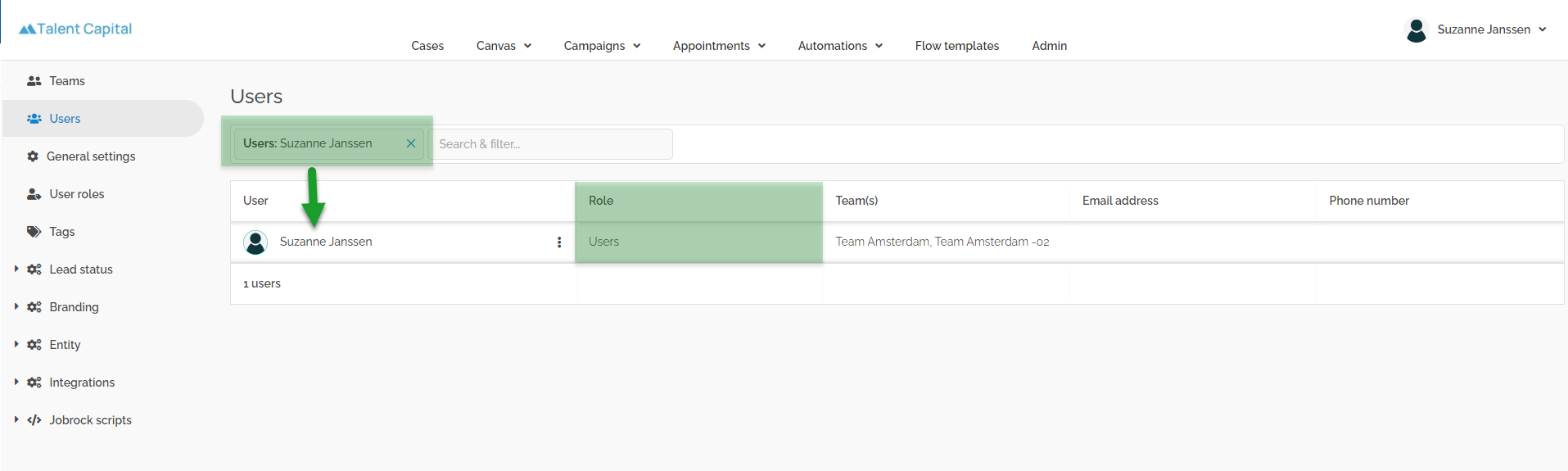
Search for the user who should receive admin rights. -
Click on the 3 dots behind the user and select Manage user role in the drop down menu.
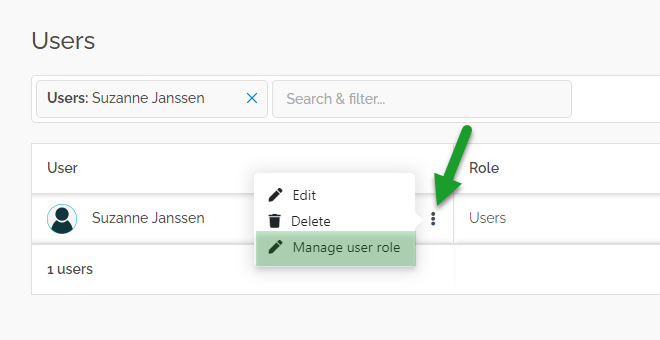
Click the 3 dots and select "Manage user role" -
Activate the Admin tickbox and click the Save button to save the role settings for the selected user.
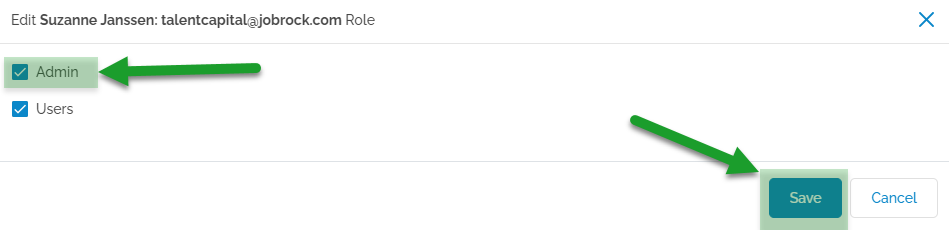
- The admin role will now show in the "Role" column behind the user.

NOTE: Changes in roles or permissions can take up to 10 minutes to process. A user can always hard refresh the page or log in again in order to check whether the changes have been processed.