How to change my Jobrock color settings?
Jobrock software has 2 custom colors which you can use to style the Jobrock software with your own branded company color. This article explains where you can update these colors and what this will do.
| IN THIS ARTICLE |
|---|
| What will happen if I update the branding colors? |
| Where to update Jobrock color settings? |
| How to update Jobrock color settings? |
What will happen if I update the branding colors?
The primary color will update several headers and buttons. The secondary color will update titles.
TIP: Jobrock advises to use the same color for both color settings. Always check if your color will be suitable to use for this. Not all branded colors will work nicely for your users and maybe a more neutral color is the best option in that case.
Where to update Jobrock color settings?

How to update Jobrock color settings?
-
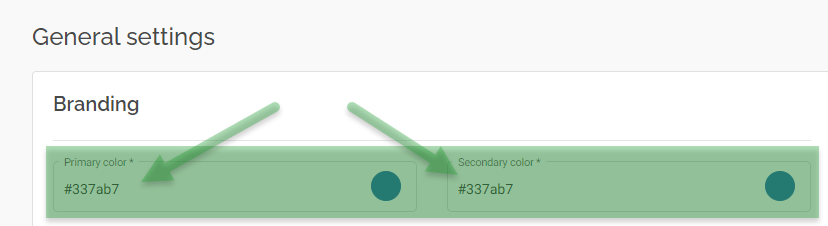
Adding a HEX color code in the Primary and Secondary color fields
To achieve this, click on the current color code and replace the code with your HEX color code.
-
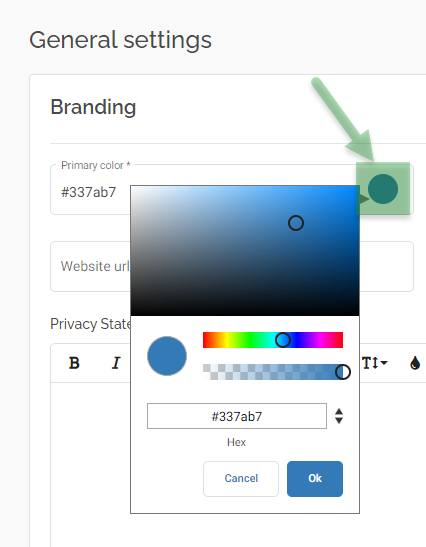
Use the Color picker to select a color
To achieve this click on the colored circle and select the color you want and click OK to select the color.
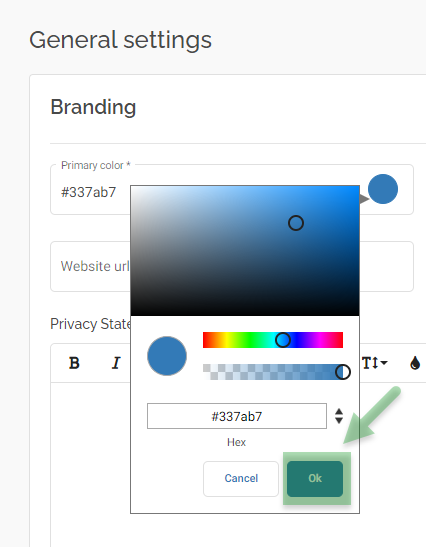
After updating the colors click the Save button to submit your changes. A refresh will be required in order to see your color changes reflect in the Jobrock tooling.
