How to change the company logo in Jobrock?
Jobrock environments can be branded with a custom logo in the top left corner of the application. By default a Jobrock logo will show. This article explains how to update this logo to a custom logo.
| IN THIS ARTICLE |
|---|
| Where to update the logo in Jobrock? |
| How to update the logo? |
Where to update the logo in Jobrock?
Go to the General settings in the Jobrock admin module via Admin > General Settings.

How to update the logo?
-
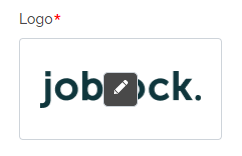
Hover over the default Jobrock logo at the bottom and click the edit (pencil) icon.
-
Select or upload your custom logo
Select an already uploaded logo from the pop-up or click Add a file to upload your custom logo from your local machine.
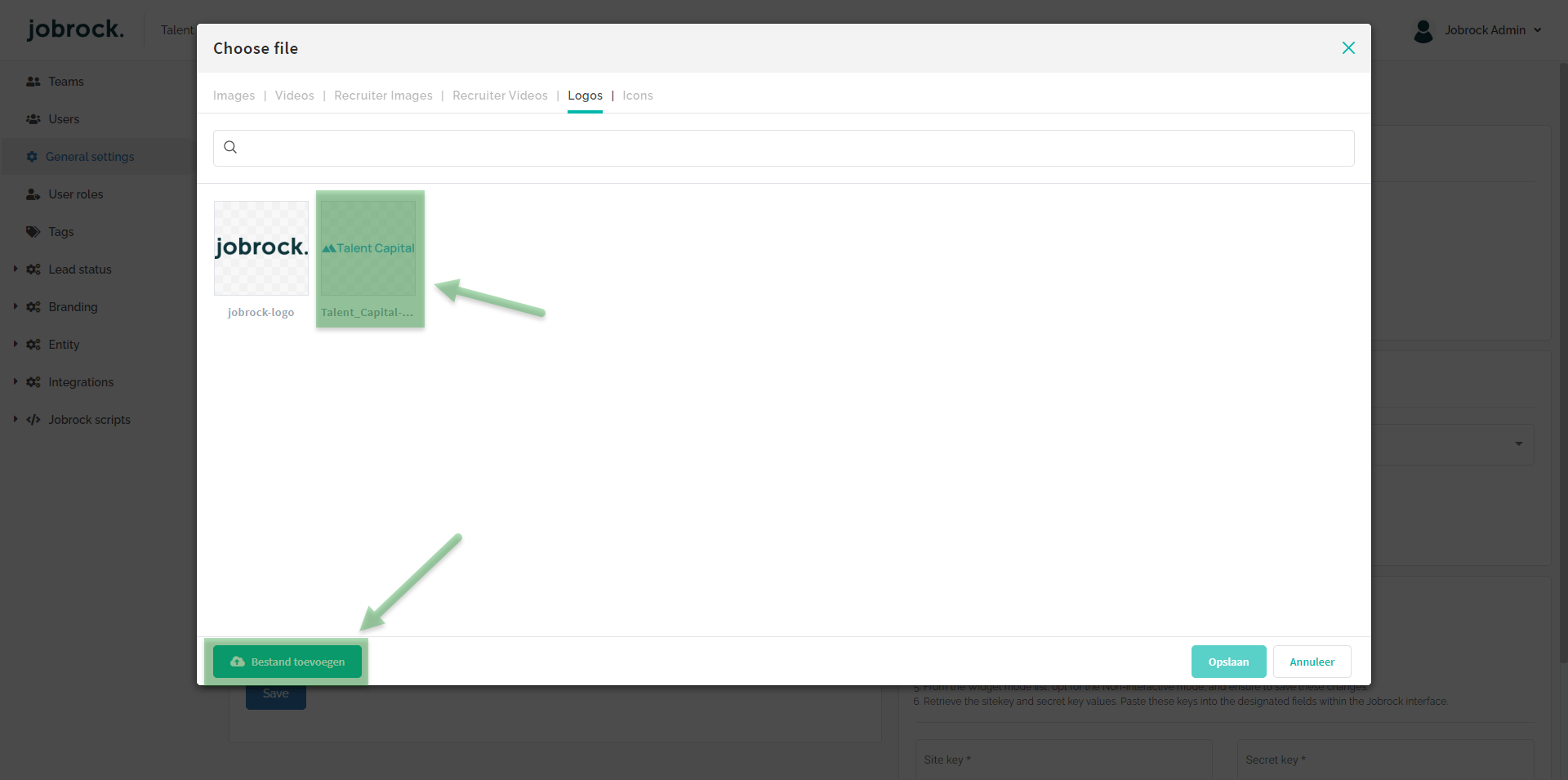
Select an already existing logo or upload a logo from your local machine. -
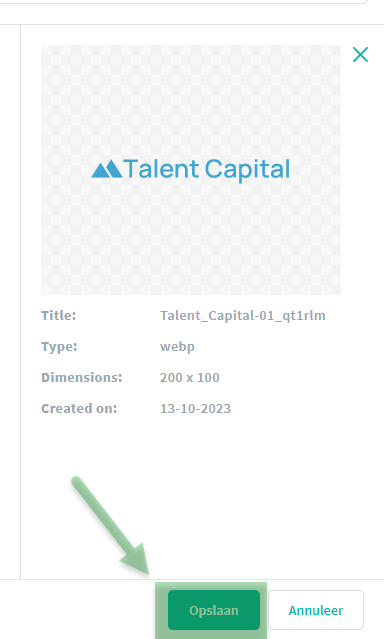
Save logo selection
The selected logo will appear on the right in the pop-up. Now click Save in order to select the highlighted logo.
-
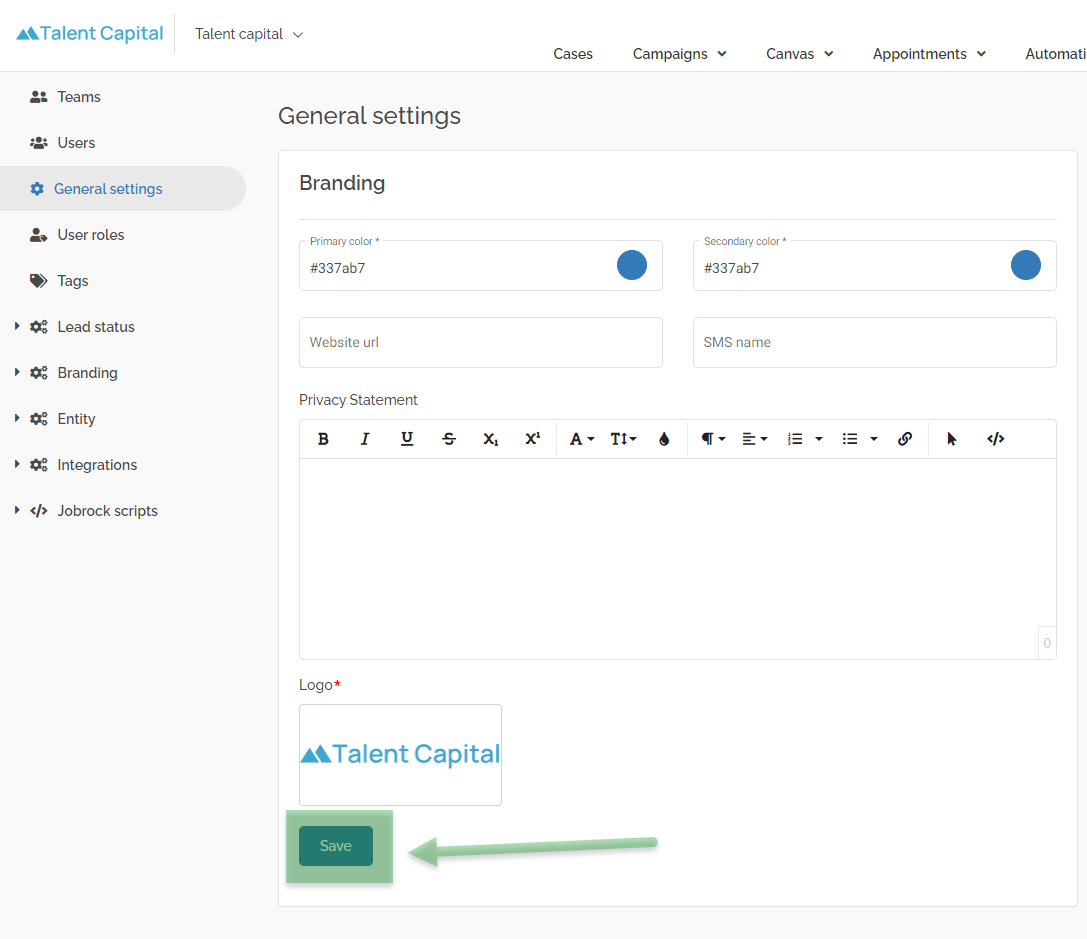
Save the newly selected logo
Click the Save button in the branding section in order to save the newly uploaded logo. After refreshing the page, the logo in the top left corner will now be updated.
TIP: Make sure if your organization uses a multi brand set-up that you will need to repeat this for all Jobrock environments. This way you will be able to easily distinguish in which Jobrock environment you're working.