How to add a custom job page domain
This article explains how a custom job page domain can be added to Jobrock in order to use this in the publication lay-over of the job page editor and publish a Jobrock job page landingpage to this custom domain.
| IN THIS ARTICLE |
|---|
| Where to add a custom job page domain? |
| Adding a custom job page domain |
Where to add a custom job page domain
Go to the Domain configuration screen in the Jobrock admin module via Admin > Branding > Domains.

Adding a custom job page domain
- Click the Add new domain button in the upper right corner of the screen.

-
Select the Job page tab
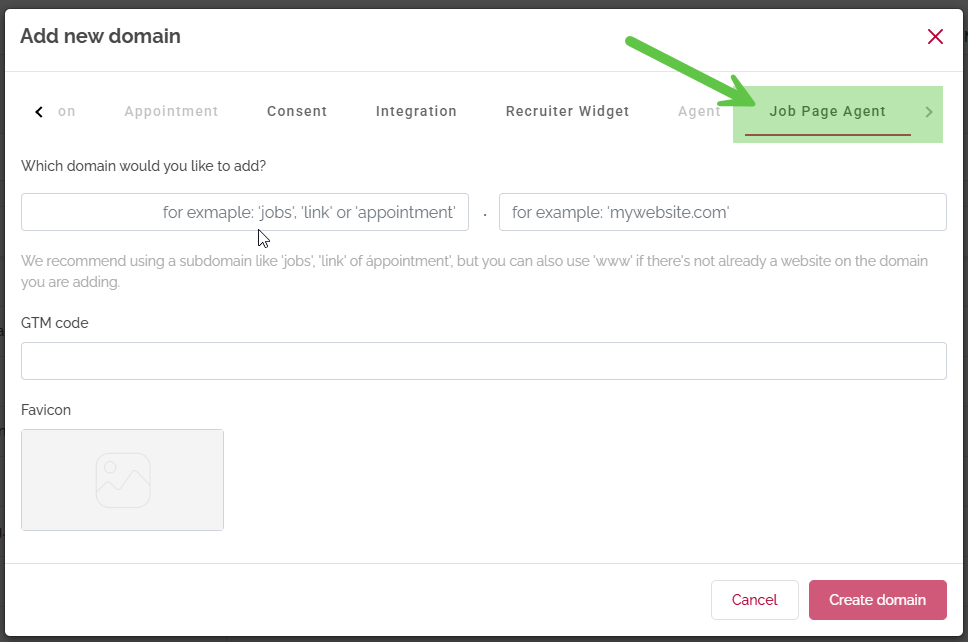
Select the "Job page Agent" tab -
Enter the domain you would like to add.
NOTE: Always make sure the (sub)domain you are adding is not yet in use!
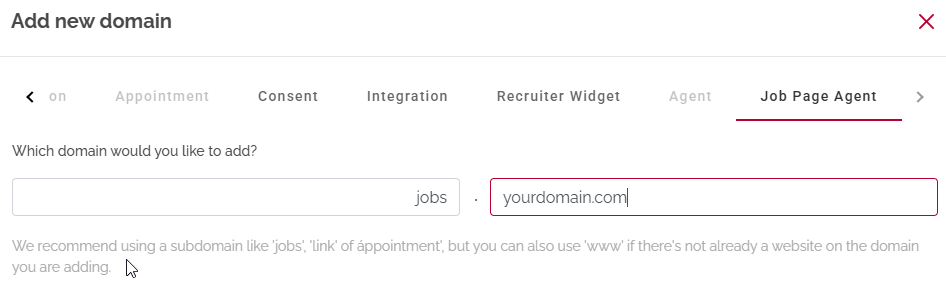
Adding a subdomain?
Use the left field to enter the subdomain and the right field for the main domain with extension.
example: jobs.yourdomain.com
Adding a main domain?
Jobrock is designed to work with subdomains. In case you want to use a full domain you can use "www" in the left field and the rest of the domain with extension in the right field. This will create a subdomain on "www."
example: www.yourdomain.com
NOTE: Be aware that in this case the domain is added with www as subdomain. This means that only entering www.yourdomain.com in the browser will work.
In case you also want yourdomain.com to work you will need to create redirect rules in your domain administration.
-
Add optional GTM and Favicon
You can (optional) add a GTM code to the domain and a favicon icon which will show in the browser tab on published pages on this domain.
-
Click Create domain to add the (sub)domain to Jobrock.
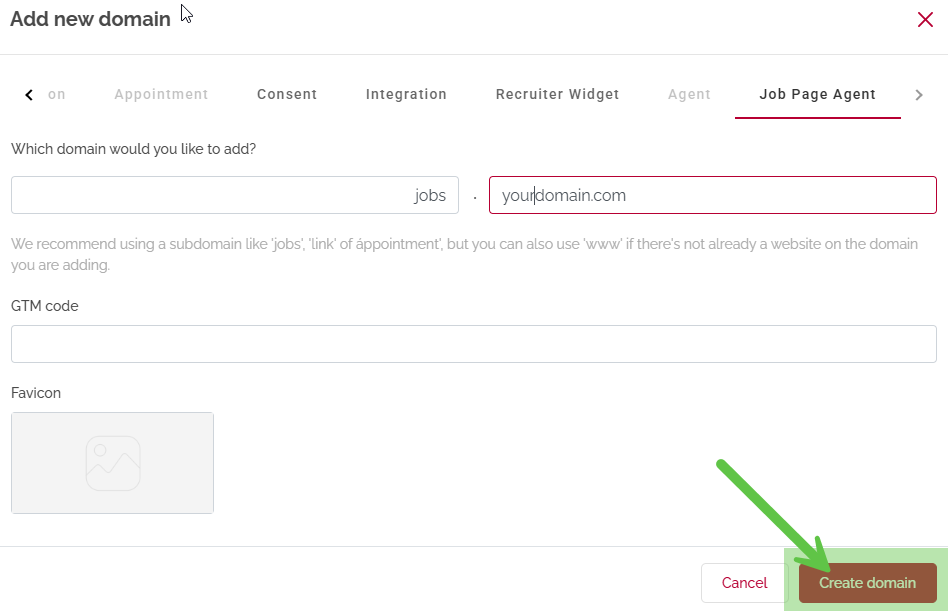
-
Your domain is now added to Jobrock.
You will now see the instructions to connect your custom domain. This action needs to be done in the DNS settings of the added domain. Go to your domain provider or contact someone who can access domain (DNS) settings of the domain you are adding.
-
Click Got it to close the pop-up. You can always re-open these DNS configuration via the three dots begin the domain in the overview. Click CNAME Setup to re-open the required DNS configuration details.
-
The domain will now show in red as Not Configured. As oon as the DNS settings are updated this domain status will automatically change to Configured in green.
Domain is succesfully added to Jobrock but DNS configuration is pending.
Domain is correctly configured - Once your domain is configured correctly you can use it to publish Jobrock job pages. The domain will now be listed in the domainlist when publishing a job page.


NOTE: DNS configuration can take up to 24 hours to process.