Best practice: G03 - Birthday message
This article shows you how to set up automated WhatsApp birthday messages in Salesforce. You'll learn to create an auto launched flow that checks for contacts' birthdays daily and sends a (personalized) WhatsApp message using a custom Apex action called "Send Message".
Creating a WhatsApp birthday message
In this Best Practice, we use WhatsApp to deliver the Birthday message to the contact who is having their birthday. Before the actual Salesforce birthday flow can be configured a standalone WhatsApp template needs to be submitted and approved. Follow the steps below before starting the step-by-step guide for the Salesforce flow configuration.
Create a formula field on the Contact object
Creating a formula field to check if today is a contact's birthday allows Salesforce to efficiently filter records where the birthday condition is true. This approach eliminates the need to evaluate each record individually, significantly reducing the number of calls and improving performance.
Steps to create a formula field to determine contact's birthday:
Step 1: Navigate to Object Manager:
- Go to Setup.
- Select Object Manager.
Step 2: Select the Contact Object:
- In Object Manager, find and select Contact.
Step 3: Create a New Field:
- In the left sidebar, click on Fields & Relationships.
- Click the New button.
Step 4: Choose Field Type:
- Select Formula as the data type.
- Click Next.
Step 5: Configure Field Details:
- Enter Field Label: Birthday is today.
- Field Name will auto-populate.
- Select Checkbox as the formula return type.
- Click Next.
Step 6: Enter Formula:
- In the formula editor, enter the following formula:
AND(
  MONTH(Birthdate) = MONTH(TODAY()),
  DAY(Birthdate) = DAY(TODAY())
)
- Click Check Syntax to validate the formula.
- Click Next.
Step 7: Set Field-Level Security:
- Set the field-level security as required.
- Click Next.
Step 8 (optional): Add to Page Layouts:
- Choose the page layouts that should include this field.
- Click Save.
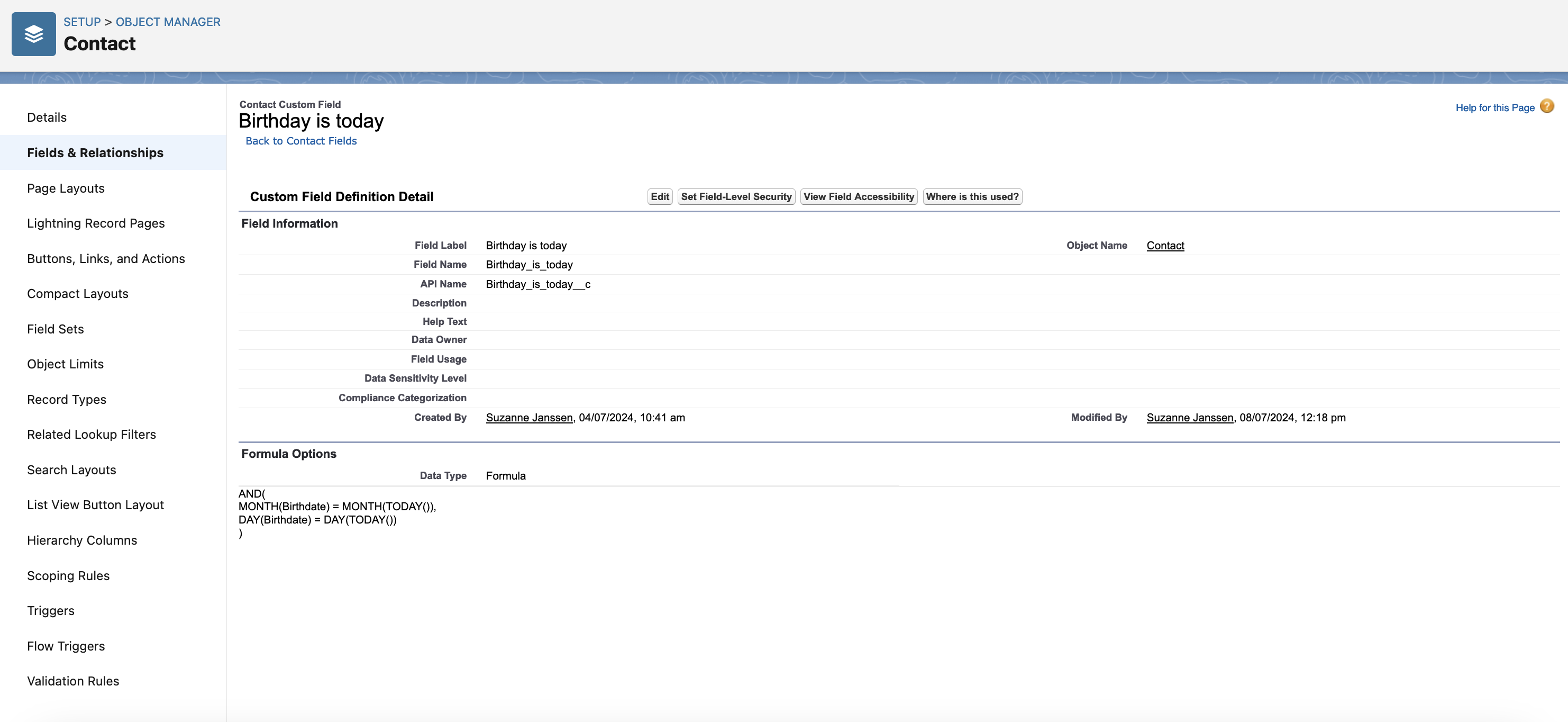
This will create a formula field on the Contact object that checks if today is the contact's birthday and marks the checkbox as true if it is.
Salesforce birthday notification flow
After creating the formula field on the Contact object, you can proceed to create the Salesforce Flow.
Prerequisites to configure the birthday flow:
- Ensure you have the necessary Salesforce permissions to create and manage Flows and Apex classes.
- Check the Jobrock Apex class details here: SendMessage.
- Make sure an approved WhatsApp template is available.
Step 1: Open Salesforce Flows
- Navigate to Setup in Salesforce.
- Enter “Flows” in the Quick Find box and select Flows under Process Automation.
- Click on New Flow and choose Schedule-Triggered Flow to start building the flow.
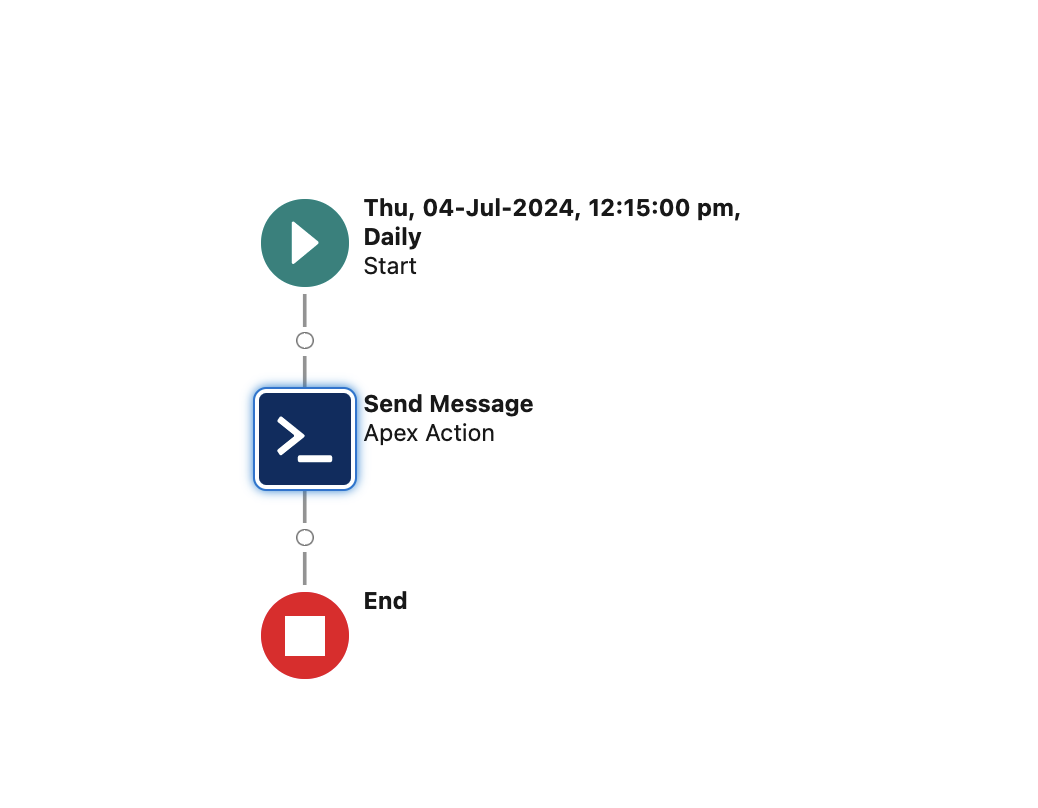
Step 2: Configure the Flow trigger
- Set the flow to trigger every day. You can configure the specific time based on your preference or business requirements.
- Click Done to save the trigger settings.

Step 3: Configure Object and Filter Conditions
- In the Choose Object and Filter Conditions section, set the Object to Contact.
- In Condition Requirements, select All Conditions Are Met (AND).
- First Condition:
- Field: Select Birthday_is_today__c. (This is the formula which you have created before)
- Operator: Select Equals.
- Value: Select True.
- AND Second Condition:
- Field: Select RecordTypeId.
- Operator: Select Equals.
- Value: Enter the specific Record Type ID (0125i000000ZI2JAAS).
- Save the flow and activate it.
Note: The specific Record Type ID varies by organization. In this example, the Record Type ID is for professionals, ensuring that only professional contacts receive a happy birthday message. This implementation can be adjusted based on your preferences.
This configuration will ensure the flow only runs for Contact records where today's date matches the contact's birthday and the Record Type ID matches the specified value.
Step 4: Add an Apex Action
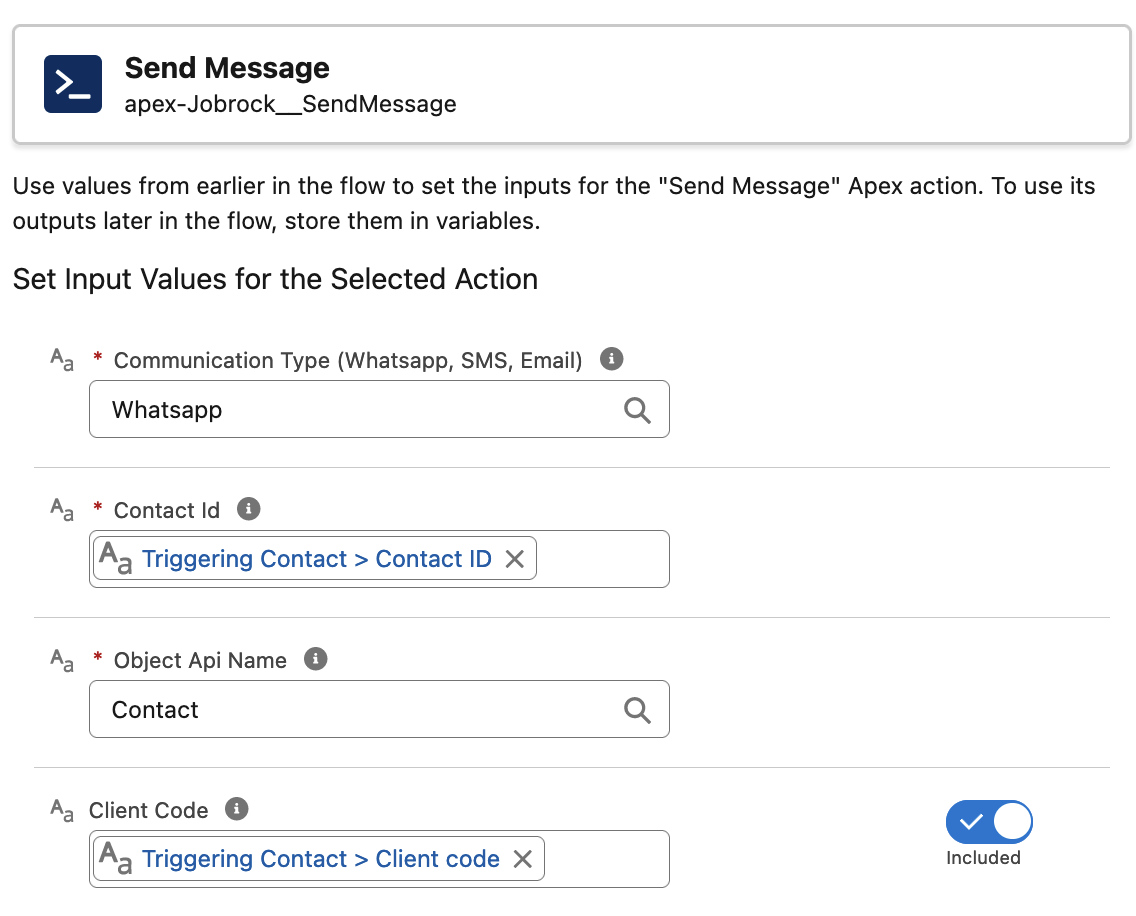
- Drag an Action element under the Is Birthday path.
- Select the Send Message Apex class.
- Label: Send Message
- API Name: Send_Message
- Map the necessary inputs such as:
- Communication Type: Whatsapp
- Triggering {!$Record.Id}
- Object Api Name: Contact
- Optional: {!$Record.Client_code__c}
Note: The use of {$Record.Client_code__c} is optional and may not be applicable for every client.
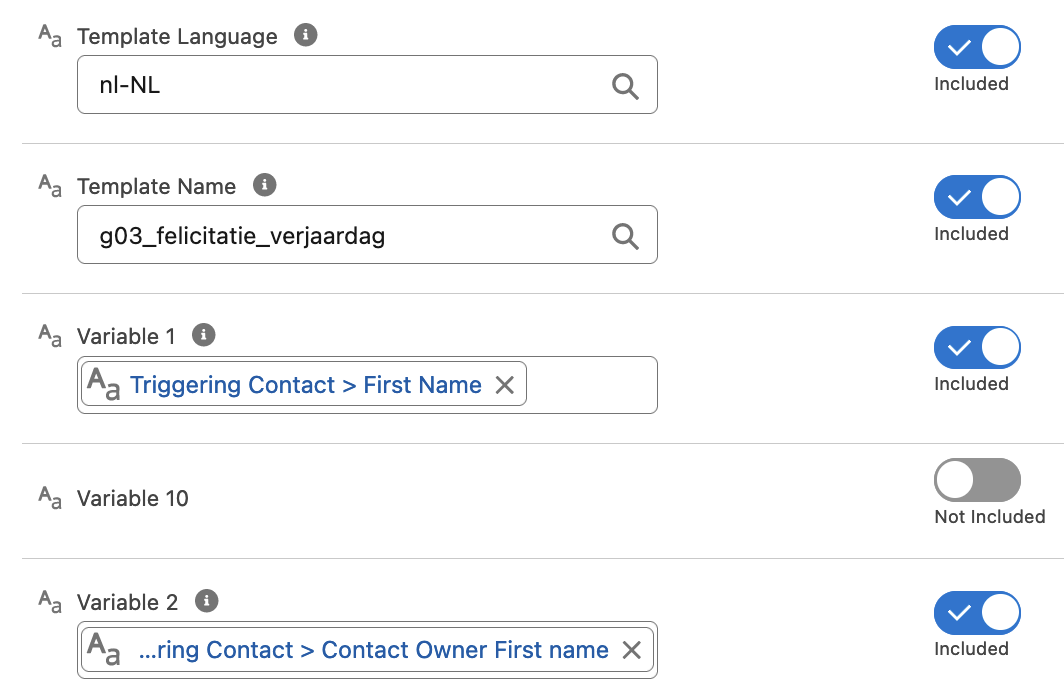
- Configure any required message template details, such as:
- Template Language: nl-NL
- Template Name (example): g03_felicitatie_verjaardag
- Variable 1: {!$Record.FirstName}
- Variable 2: {!$Record.Contact_Owner_First_name__c}
- Save the element.
Step 5: Test the Flow
- Create a contact record with today's date as its birthday.
- Make sure the contact record contains your mobile phone number.
- Use the Debug feature in Flow Builder to simulate the scheduled flow and ensure it behaves as expected.
Step 6: Activate the Flow
- Once testing is complete and the flow is verified, activate it.
Using dynamic media (optional)
In the previous chapter, a WhatsApp template (type: Media & interactive) was created with a static header video. It is also possible to make this flow even more personal by replacing the static video with a personal video of the contact owner (dedicated recruiter).
To do this you will need to enable "Dynamic replacement" and select a media classification.
READ MORE: Click here to see how you can easily create a media classification within your Jobrock environment.
Once you select the media classification while creating the WhatsApp template, the template will check if the corresponding contact owner has a personal video uploaded in their profile when triggered. If there is no personal video, the default template video will be used as a fallback.
Additional tips
In this final chapter a few additional tips to keep in mind when configuring/ using this best practice.
-
Bulkification principles
Always consider bulkification principles to ensure the flow performs well, even with a large number of contacts.
-
Consent
Make sure that the contact who is receiving this message approves receiving messages from your organization. A check on a specific contact field for this can be added to the Salesforce flow.