How to add permissions to an existing role?
By default both Jobrock roles (Admin and users) have a specific set of permissions. This article explains you how you can add a permission to an already existing role.
| IN THIS ARTICLE |
|---|
| Where to add permissions to an existing role? |
| How to add a permission to an existing role? |
Where to add permissions to an existing role?
Go to the User roles section in the Jobrock admin module via Admin > User roles.

How to add a permissions to an existing role?
-
Click the Edit permissions link behind the role for which you want to add a permission.
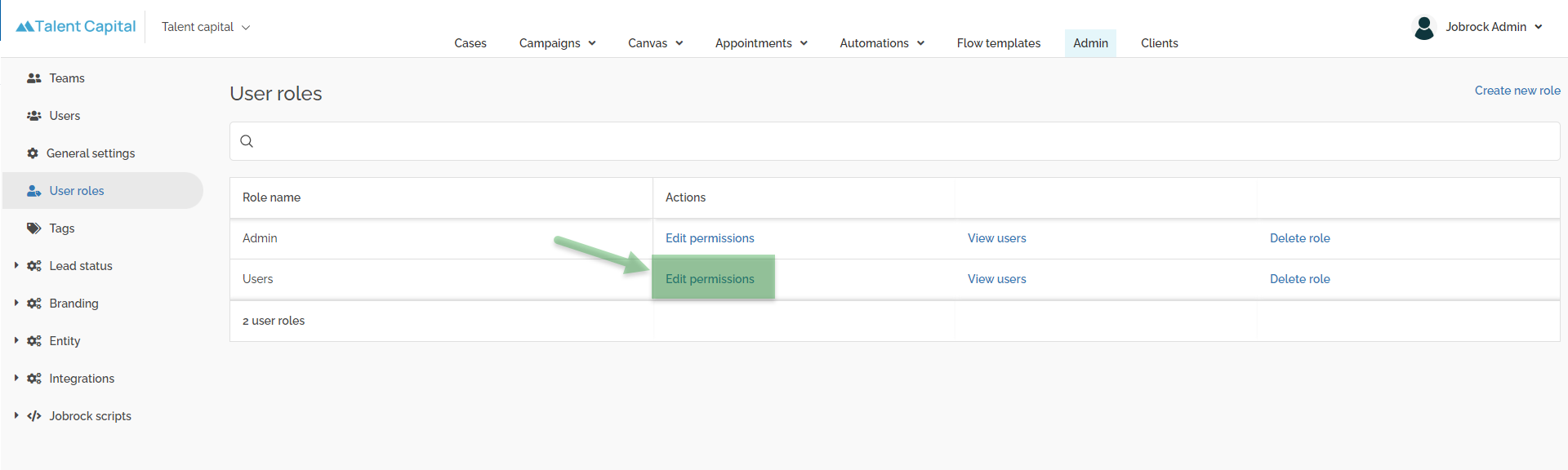
Click Edit permissions -
Tick the Granted tickbox for the permission you want to add for the active role. The granted permission will appear in the list on the right.
Example: In this example we will add permission to access Jobrock Canvas for the User role.
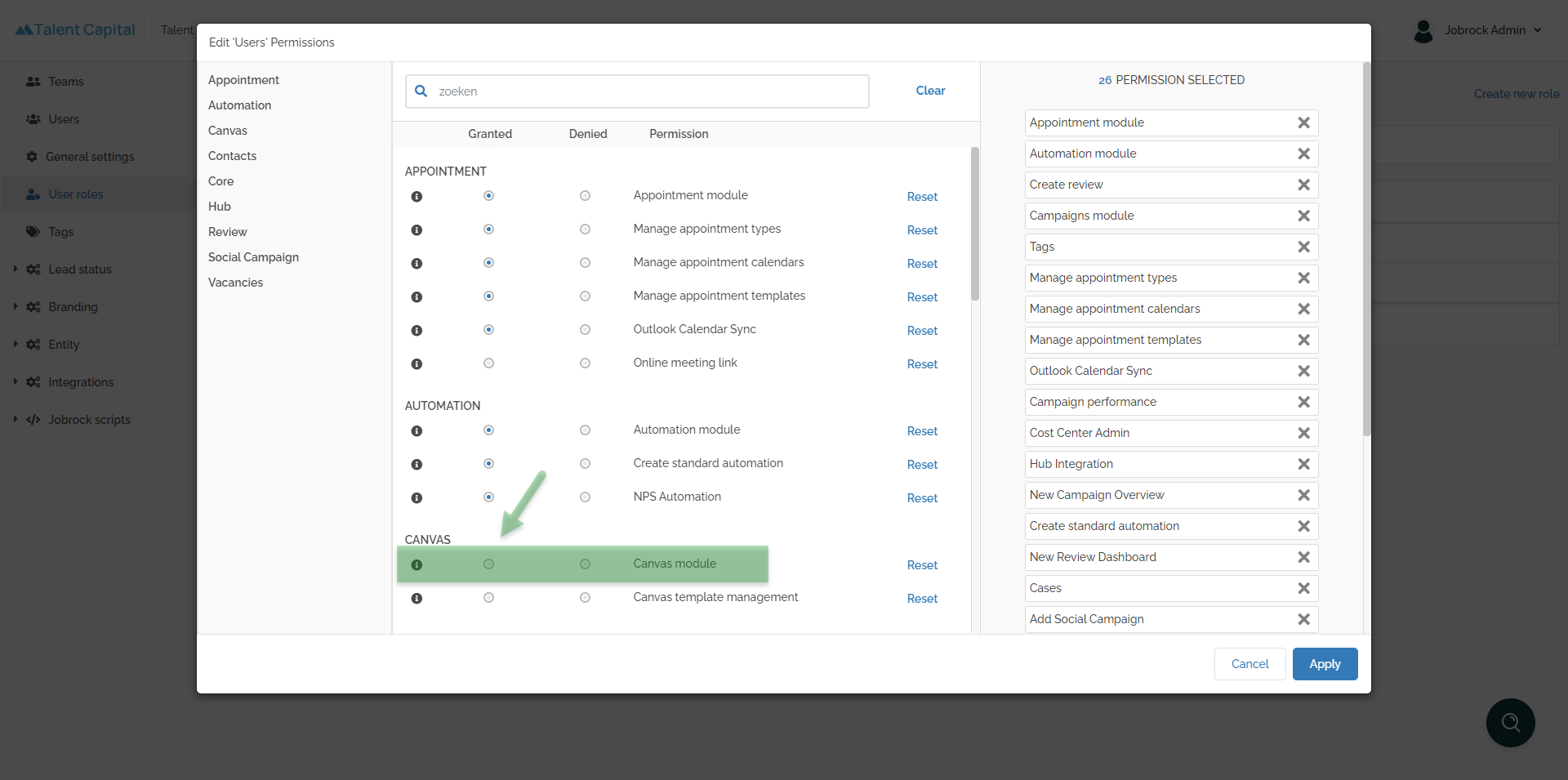
Select the Granted tickbox to add the permission for the selected role. TIP: To modify the permissions be aware that per permission you can:
- Select the Granted tickbox, this will add the permission for the selected role
- Select the Denied tickbox, this will disable the permission for the selected role
-
Click Apply to submit the new permission set for this role.
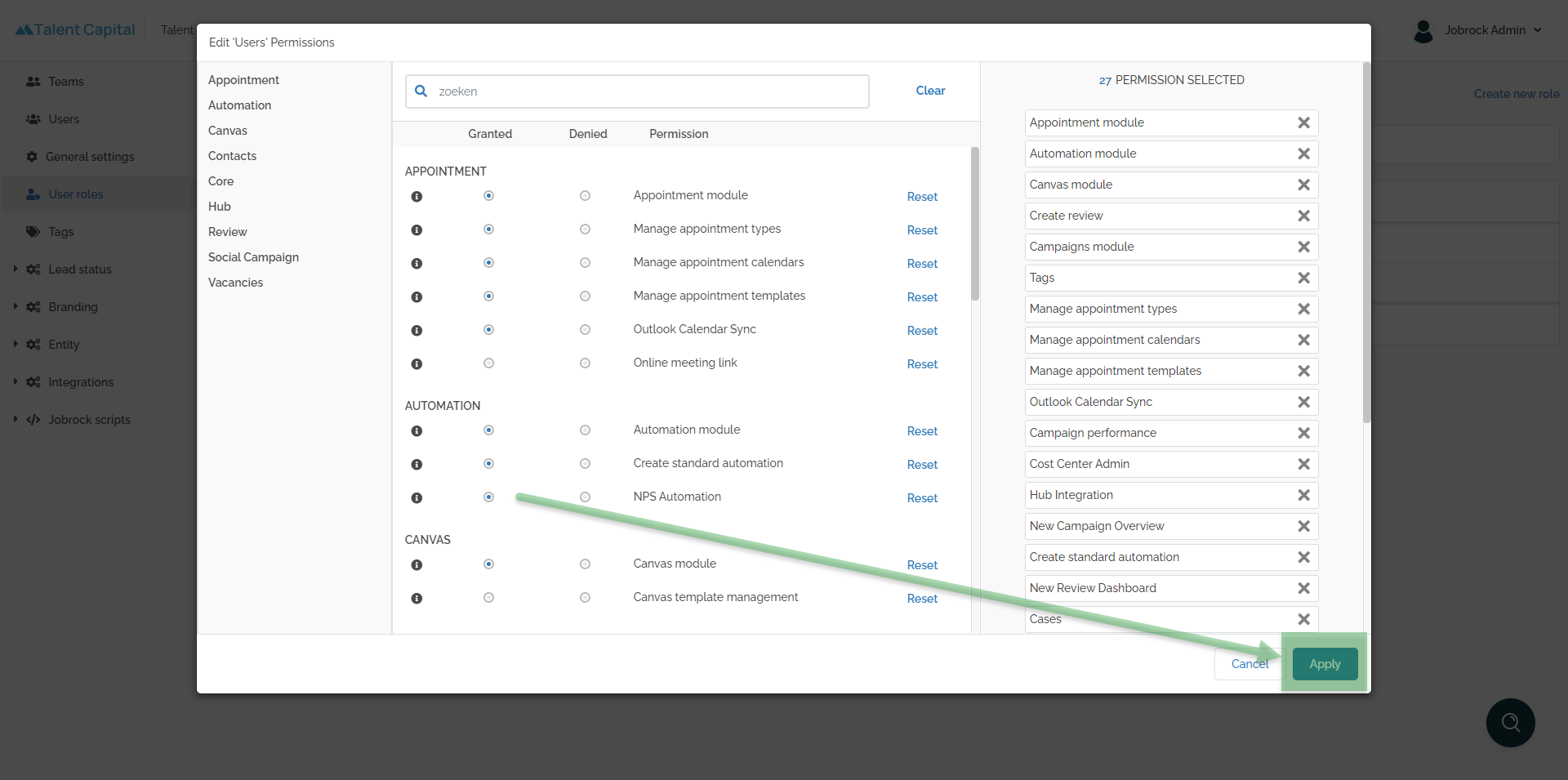
Click Apply in order to save the new permission set for the selected role. - The roles is now updated. All users with this role will have access to the given permission within 5 - 10 minutes.
