How to create a new role?
By default Jobrock offers 2 roles (Admin and Users). This article explains how to create an additional role in Jobrock.
| IN THIS ARTICLE |
|---|
| Where to create a new role? |
| Creating a new role |
| Add permissions to the new role |
Where to create a new role?
Go to the User roles section in the Jobrock admin module via Admin > User roles.

Creating a new role
To create a new role , follw the steps below:
- Click the Create new role link.
-
Enter the name for the new role, for example "Marketeer" or "Talent hacker".

Enter the name of the role. -
Click the Save button to create the role.

Click Save button to create the new role. -
The new role is now created and listed.
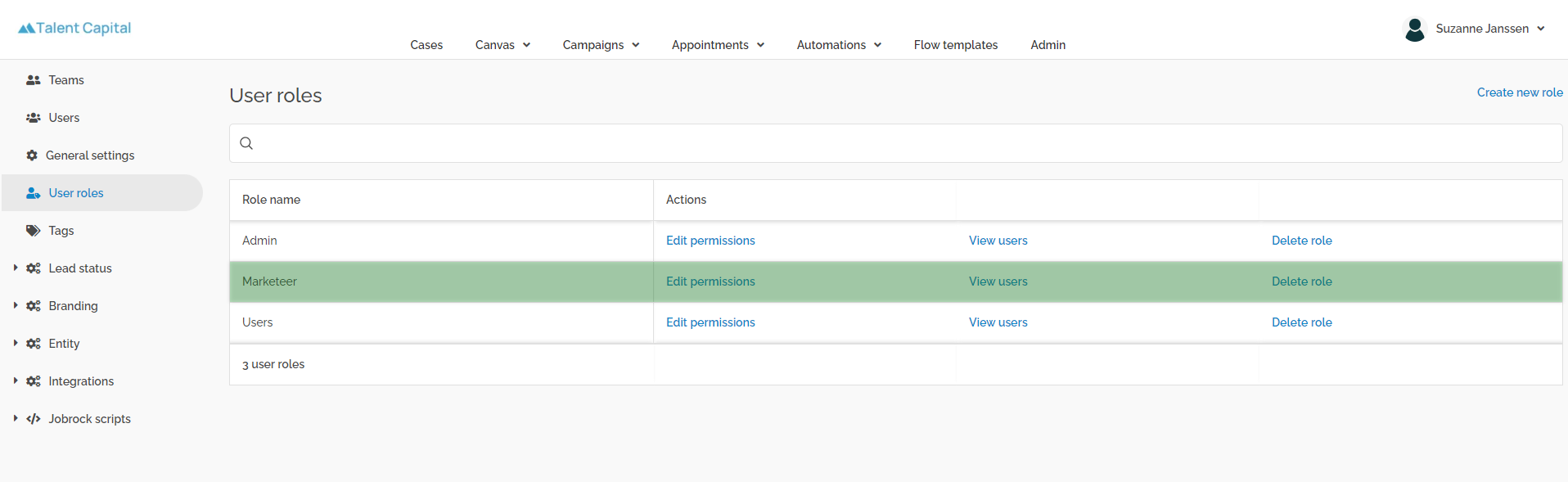
The new role is now listed.


Add permissions to the new role
The newly created role currently has no permissions yet.
TIP: Jobrock advices to use additional permissions for each role. Instead of selecting all permissions for each role, it is better to use the basic permissions of the user and give all Jobrock users this role. Additionally users can receive extra roles with their own set of permissions.
To add permissions to the new role, follow the steps below:
-
Click Edit permissions behind the created role.|
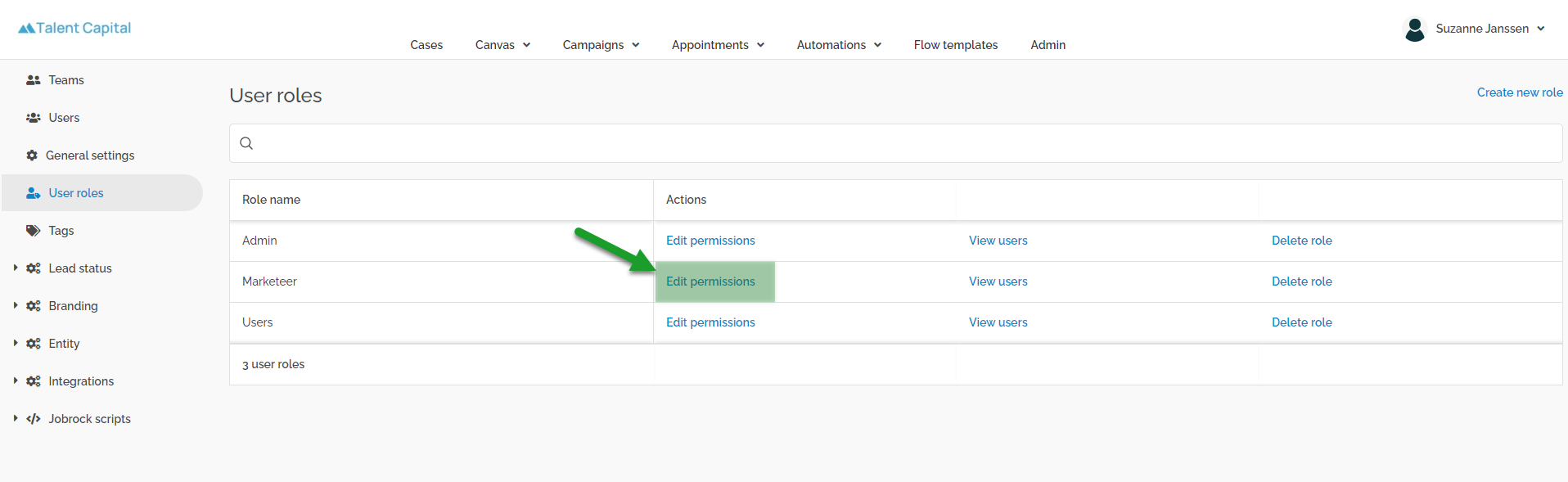
Click Edit permissions to add permissions to the role. -
A pop-up will appear in which you can select the permissions you want to add to (or block for) the role.
- At the top of the pop-up you will be able to search permissions using the search bar.
- The left side of the pop-up shows a navigation on Jobrock module. Permissions are listed under their Jobrock module.
- The middle section shows all the availabe permissions and whether they are granted or denied.
- The i icon shows extra information about the permission.
- Reset will remove the selected setting (granted or denied) for that permission.
- On the right side of the pop-up the permissions selected for this role will be listed.

Select which permissions should be granted for the role. -
Add the permissions which should be added to the newly created role by clicking the Granted radio button behind the permission.

Select the Granted radion button in order to add the permission to the role. - Click Save to update the new role with the selected permissions.
- Now the new role can be assigned to users in the users section.

