How to log a support ticket?
This article explains how to log a support ticket in Jobrock. Before logging a ticket always make sure you check the help articles which might provide the answer to your question. In case you are not able to find an answer or when you would like to report a bug or feature request, please follow the steps below.
| IN THIS ARTICLE |
|---|
| Where to log a support ticket? |
| Find your answer in the Jobrock documentation |
| How to report a bug? |
| How to submit a feature request? |
| Requesting support |
Where to log a support ticket?
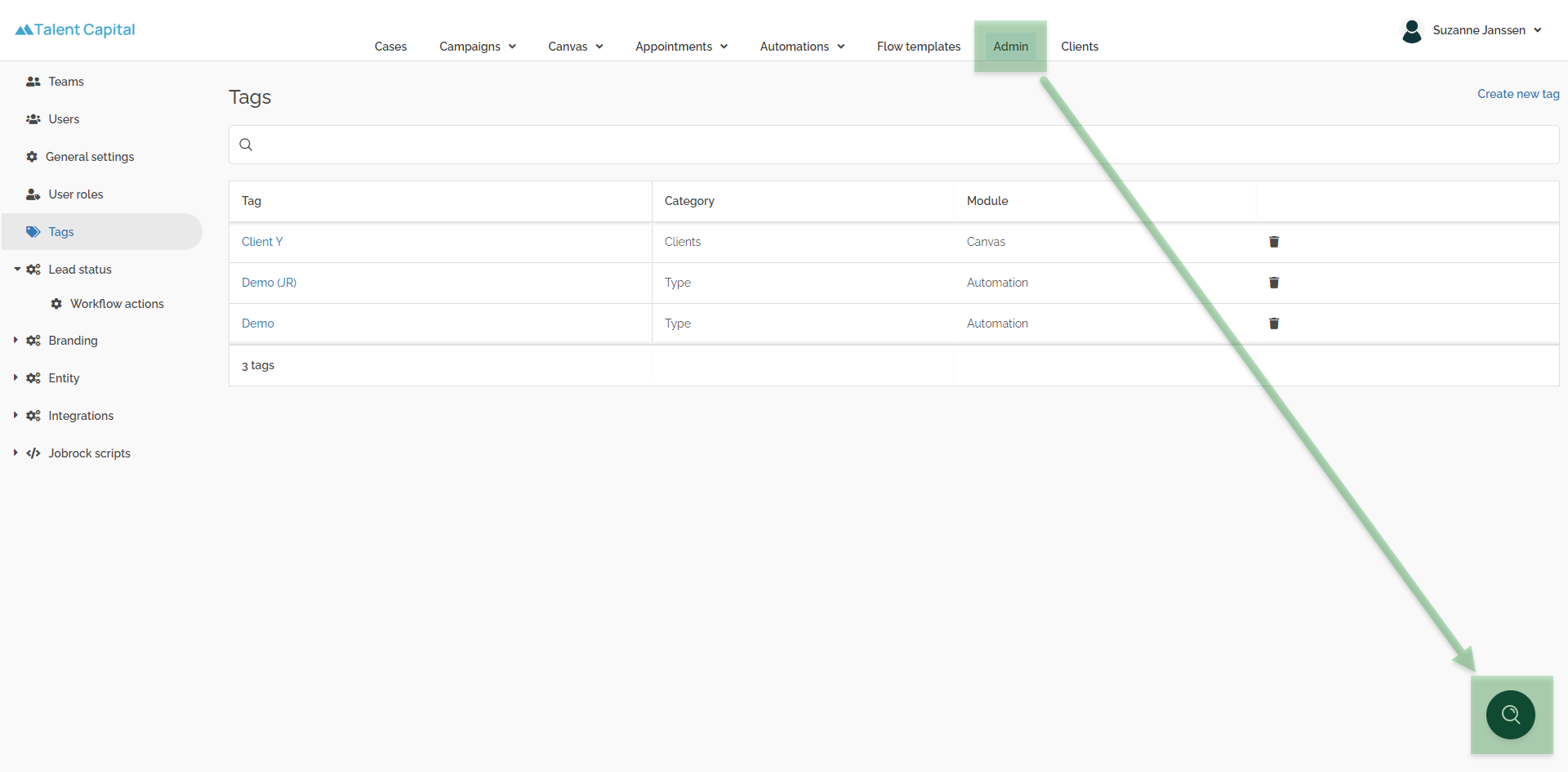
Find your answer in the Jobrock documentation?
Can't find your answer, no worries -> Jobrock support is there to help you. Please find below how to log a ticket with Jobrock support.
How to report a bug?
Did something break which normally works or worked before? Let us know!
-
Click "Ask support"

- Select "Bug" as your ticket type.
- Provide all the required information and click "Next"
- Specify a subject which clearly describes what the bug you are reporting is about.
-
Give a detailed explanation of your bug.
TIP: Send us as much information as you have. Think about job ID's, Contact or Contact in Workflow ID's, Canvas ID's, Automation ID's etc). The more information you send us in your initial request the quicker we can help you.
- Add screenshots or screenvideo's of the bug you are reporting.
-
Click "Send message" to submit your ticket.
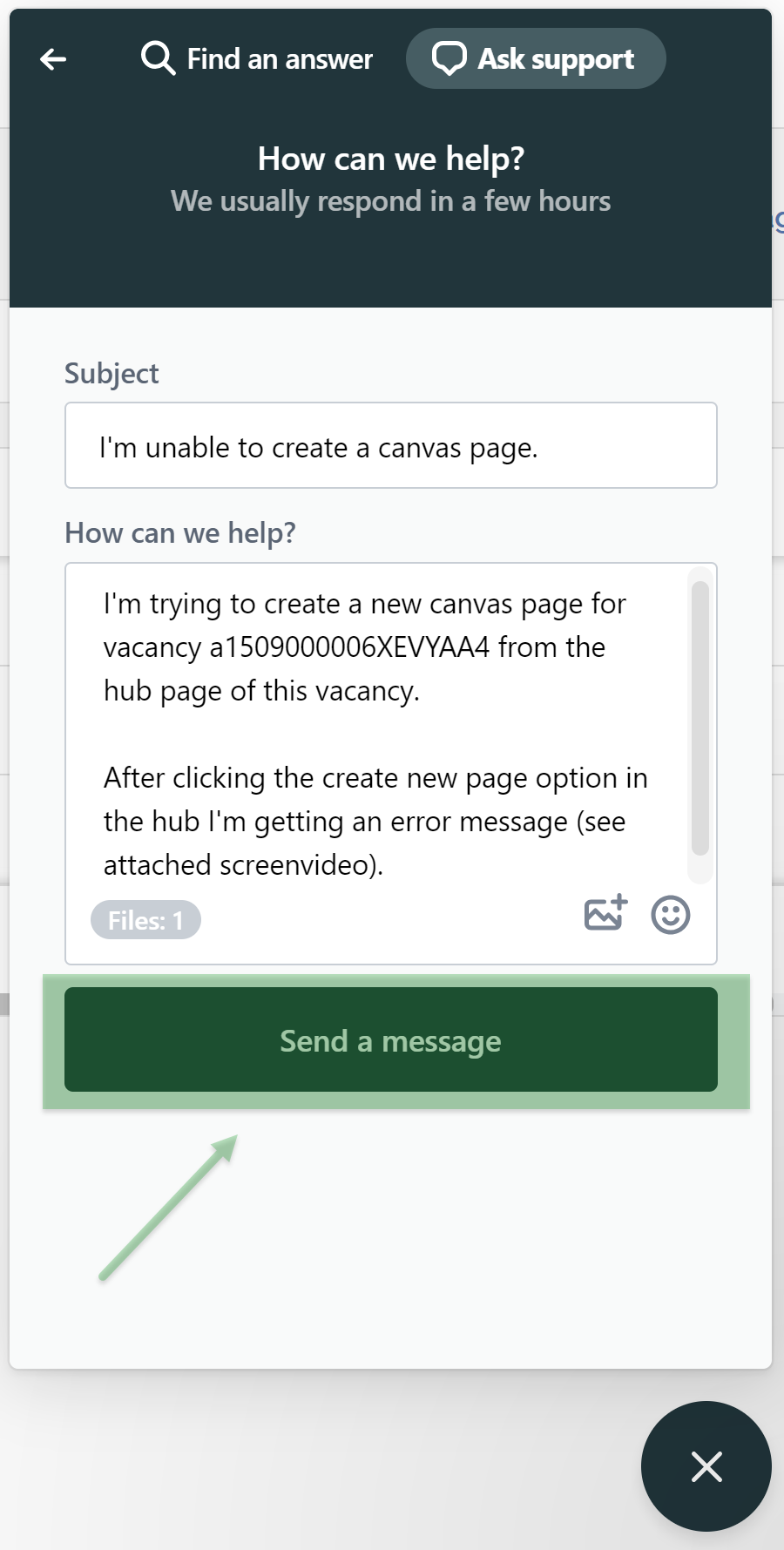

You will now receive an automated reply with your support ticket ID via e-mail. In case you want to add any further information to your request you can reply to this e-mail.
You can also see your logged tickets in the beacon under "Previous conversations".
How to submit a feature request?
-
Click "Ask support"
- Select "Feature" as your ticket type.
- Provide all the required information and click "Next"
- Specify a subject which clearly describes what your feature request is about.
-
Give a detailed explanation of your feature request and what your benefit would be if this feature would exist.
TIP: Send us as much information as you have. Think about job ID's, Contact or Contact in Workflow ID's, Canvas ID's, Automation ID's etc). The more information you send us in your initial request the quicker we can help you.
- Add screenshots or screenvideo's if that could help us understanding your request.
-
Click "Send message" to submit your ticket.
You will now receive an automated reply with your support ticket ID via e-mail. In case you want to add any further information to your request you can reply to this e-mail.
You can also see your logged tickets in the beacon under "Previous conversations".
How to request support?
-
Click "Ask support"
- Select "Support" as your ticket type.
- Provide all the required information and click "Next"
- Specify a subject which clearly describes what you are trying to achieve and why you need help.
- Give a detailed explanation of your support request with all required details.
- Add screenshots or screenvideo's if that could help us understanding your request.
- Click "Send message" to submit your ticket.
You will now receive an automated reply with your support ticket ID via e-mail. In case you want to add any further information to your request you can reply to this e-mail.
You can also see your logged tickets in the beacon under "Previous conversations".
NOTE: Do you need your client code? Read this article to find out where to find your Jobrock client code!