How to add a tag to an automation?
Tags can be useful in Jobrock to easily filter or find an automation. This article explains how to add an existing tag to your automation.
| IN THIS ARTICLE |
|---|
| The benefit of automation tags |
| How to add an automation tag? |
| How to use automation tags? |
The benefit of automation tags
For these reason it can be usefull to label your automations with Jobrock tags
How to add an automation tag?
-
Open your automation in edit mode
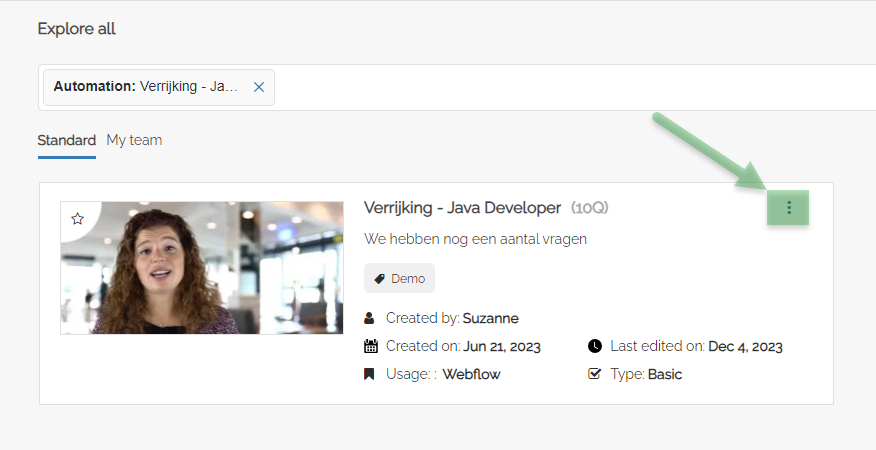
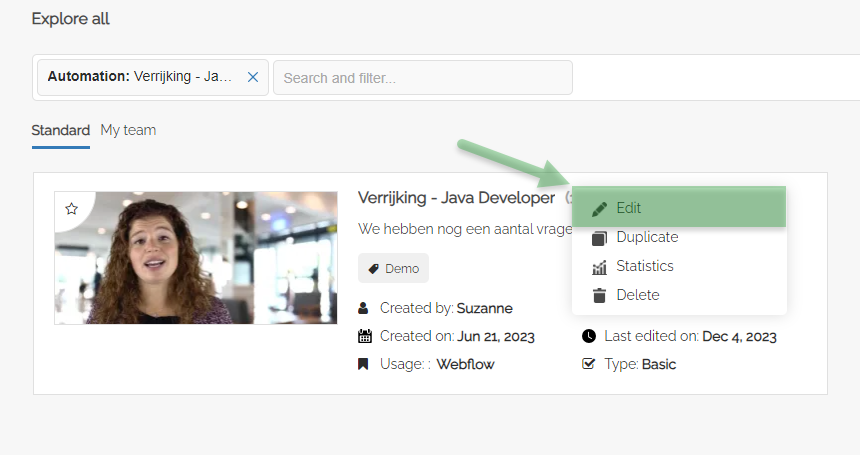
Click on the three dots next to your automation and click Edit.
-
Open the tag selection pop-up
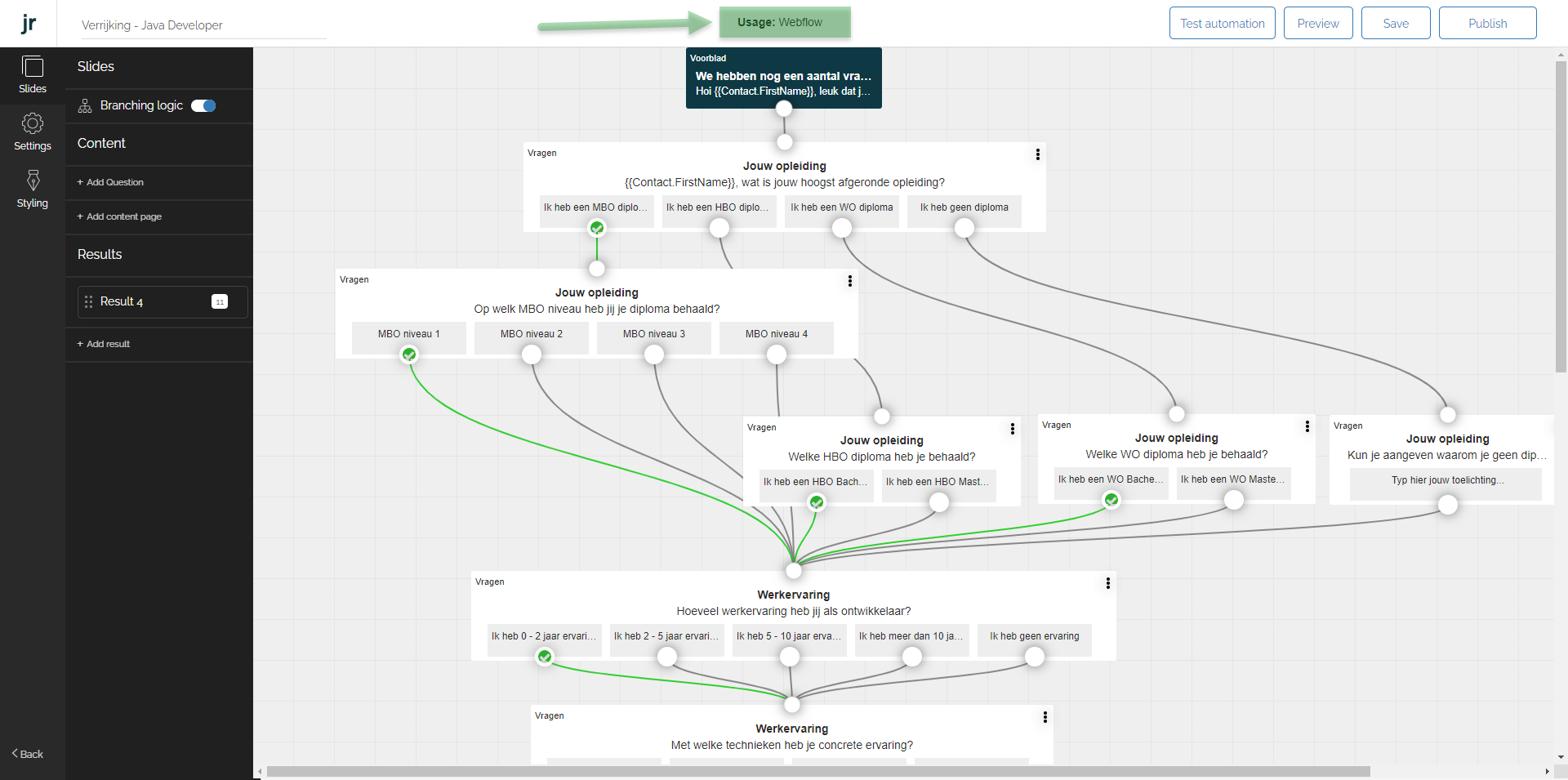
Click on the Usage label on the top of the screen.
-
Select the tag you want to add
Select the tag(s) you want to add from the drop down list.
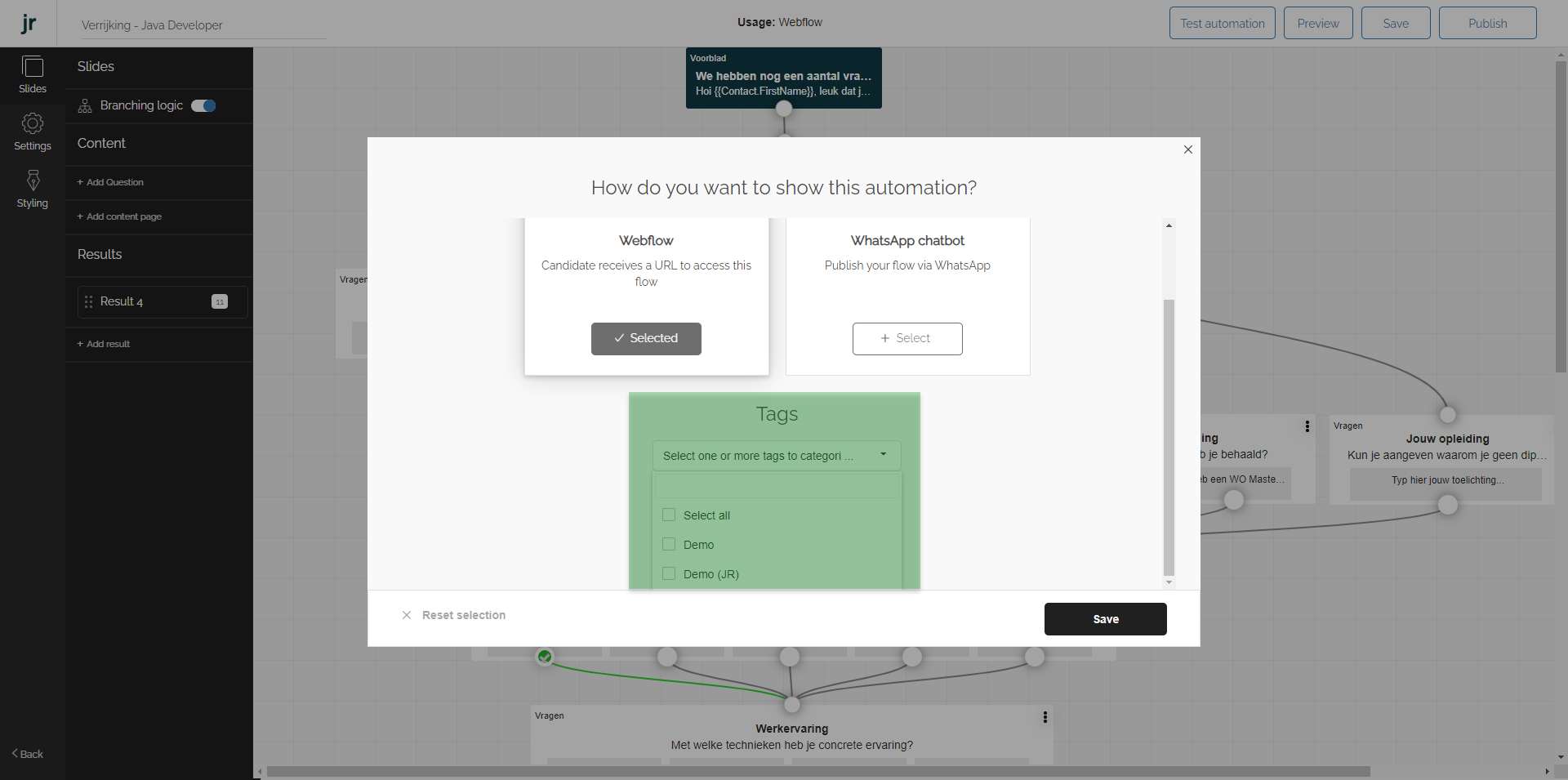
Select the tag(s) from the drop-down list. NOTE: Does the tag you want to use not exist, please contact your Jobrock admin.
-
Save the tag(s)
Click the Save button in order to submit the added tag(s) to your automation. There's no need to save the automation itself. When returning to the Jobrock dashboard you will see (refresh required) the tag added to your automation.
-
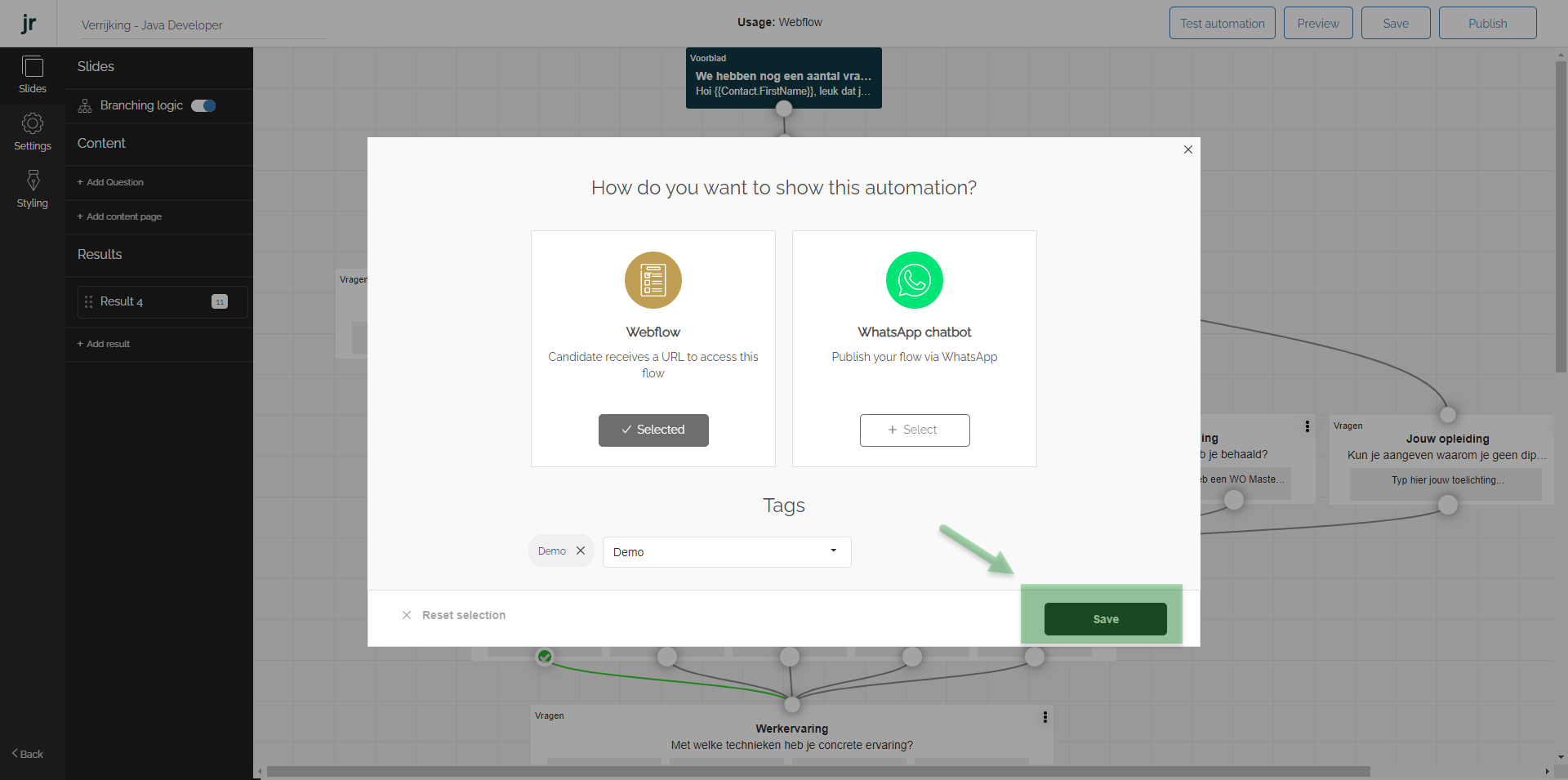
Save the tags added to the automation. 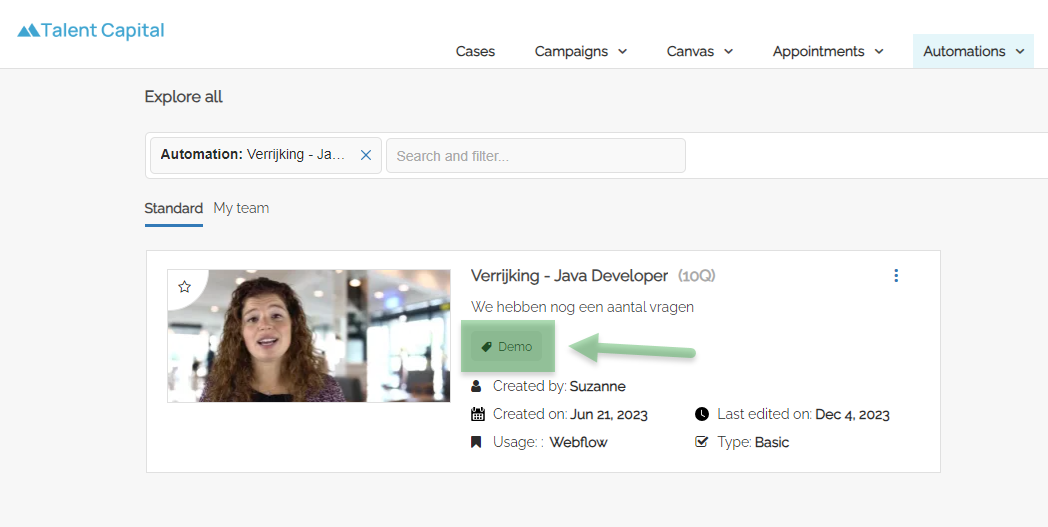
How to use automation tags
When entering the tag in the search bar, the search results will now return the matching tags in the "Tags" section of the drop down. After you click on the tag it will show you all the automations with this tag.

NOTE: Does the tag you want to use not exist, please contact your Jobrock admin.