How to link my external calendar?
In Jobrock you can connect your external calendar (for example your 365 or Gmail account) with your Jobrock calendar. This article shows you the steps on how connect to your external email account and how to configure the synchronization.
| IN THIS ARTICLE |
|---|
| Where to link my external calendar? |
| How to link an account? |
| How to link my external calendar? |
| How to synchronize to and from my external calendar? |
Where to link my external calendar?
Go to your Jobrock profile by clicking on or hovering over your name in the uper right corner and click My profile.

How to link an account?
Follow the steps below to initially link your external account (for example Google account or Microsoft 365 account) to Jobrock.
-
Click the Link account button
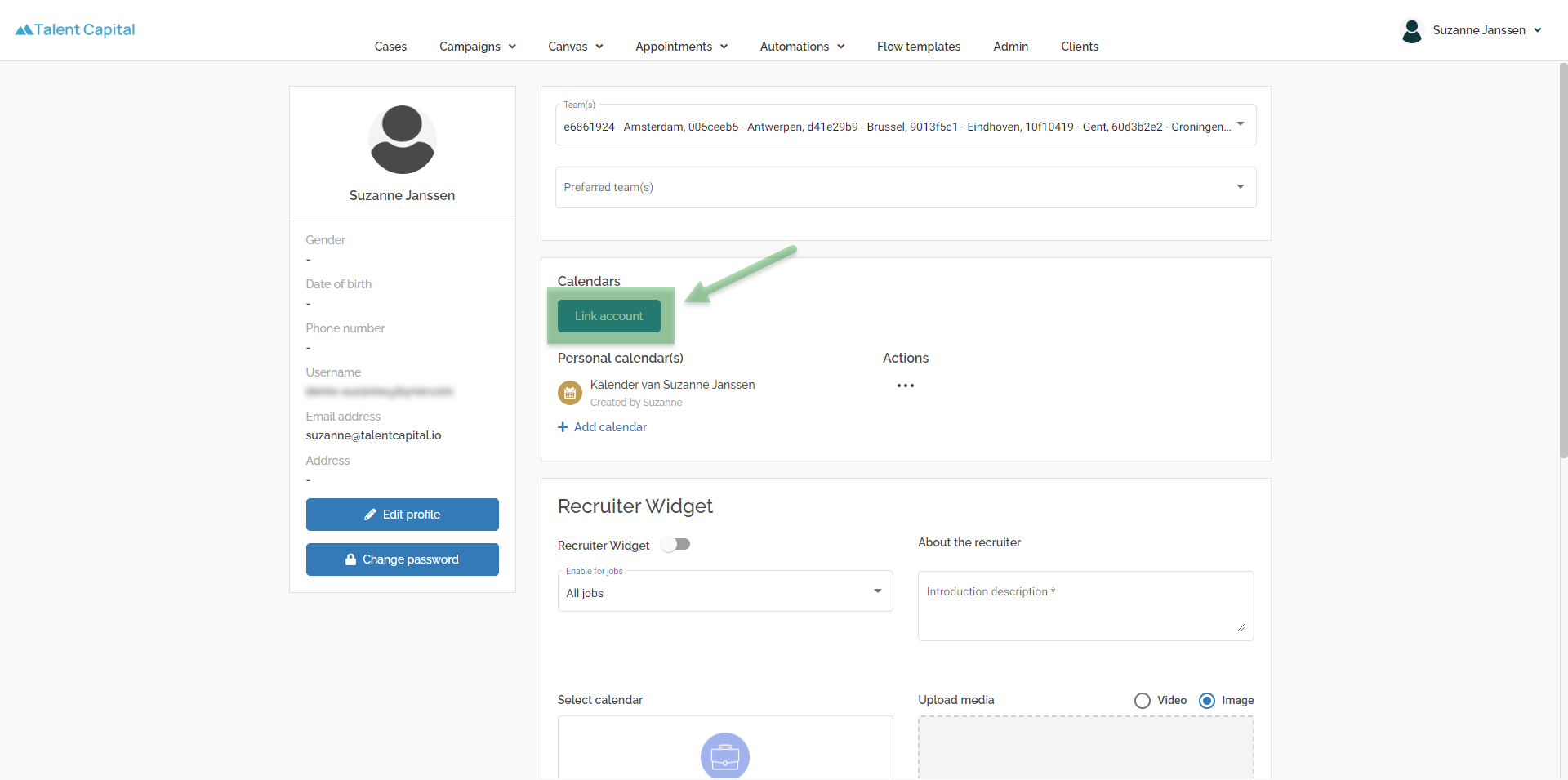
-
Select your external account
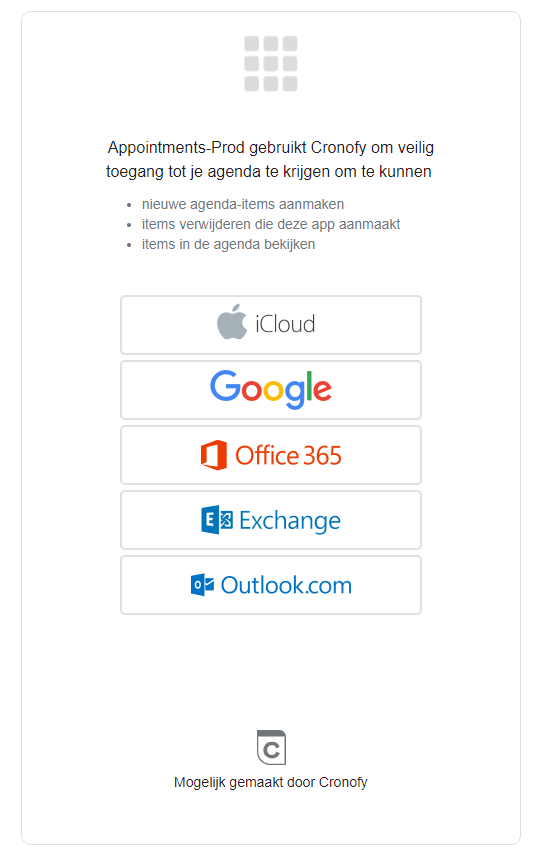
-
Agree with the privacy statement and user policy of Cronofy
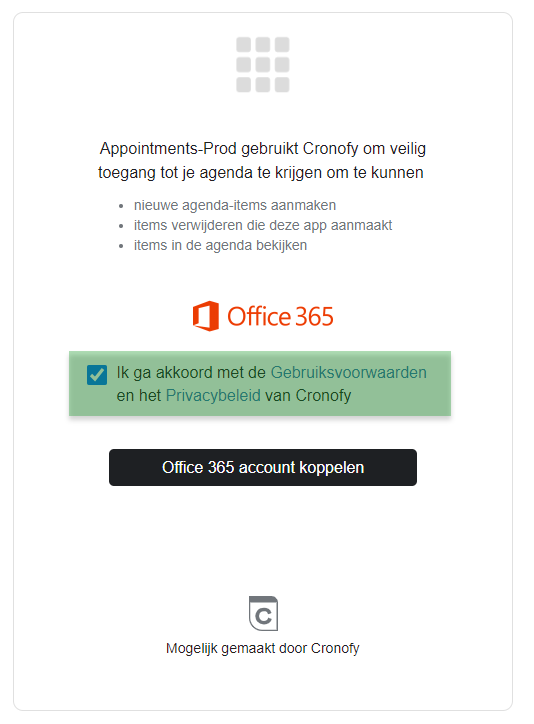
-
Log in with your e-mail account credentials
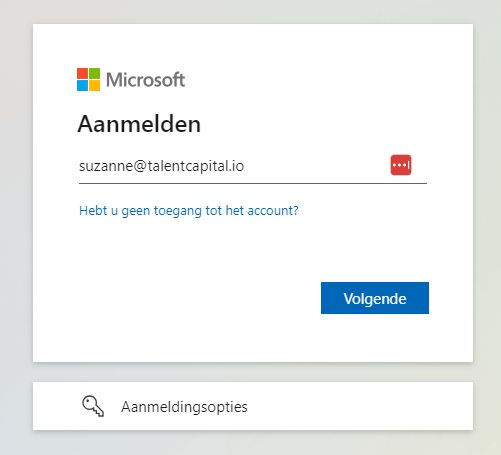
Use your credentials to login once.
Now your external account is linked to your Jobrock user account. In order to connect your Jobrock calendar(s) with your external calendar(s), proceed to the chapter below.

How to link my external calendar?
Follow the steps below to set-up a calendar connection with your Jobrock calendar.
READ MORE: Do you NOT have a personal Jobrock calendar, you can create one via the + Add calendar link in your profile or via the Appointets > Calendar section in Jobrock. More details on creating a personal calendar can be found in this article.
How to synchronize to and from my external calendar?
There are 2 ways of synchronization which can we activated:
-
Appointment synch (Jobrock to external calendar)
Select this tickbox in case you want all incoming appointments (created by candidates) synched from your Jobrock calendar towards your external calendar.

NOTE: This tickbox is mandatory in case you want to use Meeting link functionality
-
Availability synch (External calendar to Jobrock)
Select this option in case you want Jobrock to

